Adding search to your website is cool, but have you added OpenAI and Supabase to the mix? Here's how we did just that.
Recently, we did a big refactor to our internal knowledge base—a place where we document guidelines and processes, including onboarding procedures for new employees. It has a lot of organized information and currently has a basic search feature. To find information, colleagues either use a sidebar with nested links or the search bar to look for specific terms. But what if you could just ask your question and have it answered directly?
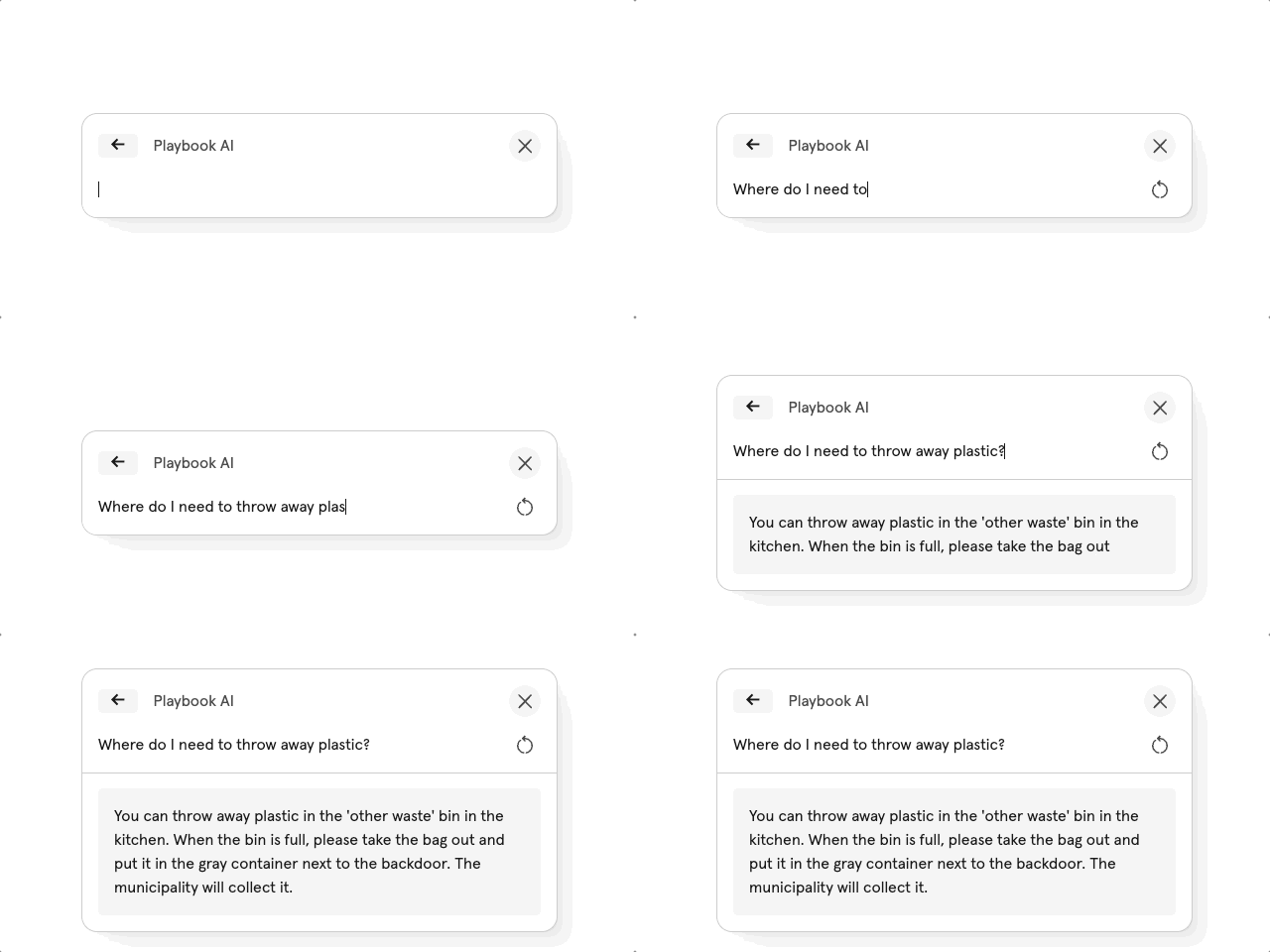
After reading this blog post, we tried to build this AI search functionality ourselves and in this article we will delve into the concepts and code of it, using Supabase and the OpenAI API. We wanted users to be able to ask questions and have them answered based on the pages in our knowledge base. The end result looks like this:
Sectioning Content and Creating Embeddings
Before we dive into the functionality, let's look into some of the concepts we’ll use later on. It's essential to understand how we'll match a posed question to the playbook's content.
For a simple analogy, consider categorizing animals like cats, bears, and elephants based on two factors: 'size' and 'danger' (note: this data is not factual, just a rough estimation). This comparative approach can be visualized as shown here:
Now when we want to search for an animal most similar to a cow based on these two dimensions, the end result looks like this:
In this example we find the euclidean distance between ‘cow’ and each other animal. We filter out the top three and show them in the visualization.
Furthermore, we can refine the search by introducing a third parameter, like the speed of each animal. The size of each point is now based on the speed of the corresponding animal.
This extra dimension provides us with a different result than before. By adding even more dimensions the comparison between points would become more refined.
The OpenAI API allows us to apply this method to blocks of text, analyzing them in 1536 dimensions. This approach results in a highly detailed classification of the text.
In multi-dimensional spaces, a specific position can be represented by a 'vector'.. Essentially, a vector in a 1536-dimensional space is an array of length 1536. This array can be persisted in a database, making it queryable. The process of converting raw text data into this vector format is known as 'embedding'. Under the hood, this embedding uses algorithms to translate text data into a numerical space, optimizing it for machine learning tasks such as our search functionality.
When a user asks a question to our AI, we generate an embedding for the question. Subsequently, we compare this question embedding with those created for each section. Since each embedding is simply a point within a defined space, we can identify which points (or section embeddings) are closest to our question.
Preparing Embeddings
We could create an embedding for each page, but to make them more refined we split them up into sections. LangChain has an excellent toolchain for this task. Below is an example of how this can be achieved.
Storing Embeddings in a Database
To store the embeddings in a database, the database needs to support vector storage. At De Voorhoede, we often use Supabase, which fortunately includes a vector extension. Here's how we added the migration to the project to enable vector storage:
-- Enable the pgvector extension to work with embedding vectors
CREATE EXTENSION IF NOT EXISTS vector;

-- Create a table to store your documents
CREATE TABLE documents (
    id          BIGINT PRIMARY KEY GENERATED ALWAYS AS IDENTITY,
    source_url  TEXT,
    source_name TEXT,
    checksum    TEXT
);

-- Create a table to store your document sections
CREATE TABLE document_sections (
    id          BIGINT PRIMARY KEY GENERATED ALWAYS AS IDENTITY,
    content     TEXT,
    metadata    JSONB,
    embedding   VECTOR(1536),
    document_id BIGINT NOT NULL REFERENCES public.documents ON DELETE CASCADE
);
In the code snippet above, we store a vector with 1536 dimensions, which aligns with the dimensions of the embedding obtained from the OpenAI API.
In the example above, ‘documents’ represent the pages in our knowledge base and ‘document_sections’ represent the sections we created using the LangChain text splitter. To make sure we don’t create embeddings for a document while its contents didn’t change, we create checksums. A checksum of a document is a hash generated based on its content. Below is an example of how this can be done. Change something in the ‘bison.md’ file and see how the hash does not match anymore:
Searching the sections
To identify the most relevant section, we compare the question's vector with the vectors stored in the database for each section. We accomplish this by identifying which vectors are closest in the multidimensional space. The pgvector extension from Supabase allows us to utilize the <=> operator, which computes the ‘cosine similarity’ between two vectors. If you (like me) did not really pay attention during math class but now want to know more about stuff like this, I recommend watching this short video. It comes down to measuring the cosine of the angle between two vectors to see how much they point in the same direction; a value of 1 indicates high similarity, while 0 indicates no similarity.
Here's an illustrative query from the Supabase documentation:
create or replace function match_documents (
  query_embedding float[] default array[]::float[],
  match_count int default null,
  filter jsonb default '{}'
) returns table (
  id bigint,
  content text,
  metadata jsonb,
  document_id bigint,
  source_url text,
  source_name text,
  similarity float
) language plpgsql as $$
#variable_conflict use_column
begin
  return query
  select
    ds.id as id,
    ds.content,
    ds.metadata,
    d.id as document_id,
    d.source_url,
    d.source_name,
    1 - (ds.embedding <=> query_embedding) as similarity
  from document_sections ds
  inner join documents d on ds.document_id = d.id
  where ds.metadata @> filter
  order by ds.embedding <=> query_embedding
  limit coalesce(match_count, 10); -- default to 10 if null
end;
$$;
This is how it looks when implemented in the back-end code:
const { error: matchError, data: documentSections } = await supabase.rpc(
  'match_documents',
  {
    query_embedding: queryEmbedding,
    match_count: 3,
  }
);
Formulating Answers
With our database now in place, it's time to integrate it into both our back-end and front-end systems. Users should have the capability to enter a question and submit it. The back-end will then interact with the database and the OpenAI API to generate an accurate response.
Using the Postgres function described above, we obtain the relevant information (in this case 3 document sections). Our next step is to distill it into a coherent answer. We accomplish this by feeding all the information to the language model, providing some instructions on formulating the response, and waiting for the output:
You are a helpful Voorhoede assistant who loves to help people! Given the following context, answer the question using only that information. If you are unsure and the answer is not found in the context given, say "Sorry, I don't know how to help with that."

Context sections:
{{context}}

Question:
{{question}}

Answer:
And use it with the OpenAI API:
fetch("https://api.openai.com/v1/chat/completions", {
  method: "POST",
  headers: {
    "Content-Type": "application/json",
    Authorization: `Bearer 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`,
  },
  body: JSON.stringify({
    model: "gpt-4",
    messages: [
      {
        role: "system",
        content:
          'You are a helpful Voorhoede assistant who loves to help people! Given the following context, answer the question using only that information. If you are unsure and the answer is not found in the context given, say "Sorry, I don\'t know how to help with that."',
      },
      {
        role: "user",
        content: `
Context sections:
## **Plastics**

We collect all the plastics that can be recycled in a bag in the closet next to the phone booth. The bag needs to be taken out every once in a while in a public underground container in the city.
---
# **Waste management**

At our office in Amsterdam we separate waste in 4 ways:
---
## **Glass**

We collect glass in a separate bag in the closet next to the phone booth. The bag needs to be taken out every once in a while in a public glass container in the city.
---

Question:
Where do I need to throw away plastic in the office?
            `,
      },
    ],
  }),
});
Implementation in the front-end
To implement this in a user friendly way we want to have the answer streamed to the client. We use edge functions as backend in our project. While we use Netlify for this, environments like Vercel or Deno also support them. To get the nice typewriter effect, we can stream the response to the client word by word. The API is giving us its output everytime it predicts a new word, making the user see the response as fast as possible. An alternative is to wait for the complete output, but this approach delays the response until all predictions are made, compromising user experience.
fetch("https://api.openai.com/v1/chat/completions", {
  method: "POST",
  headers: {
    "Content-Type": "application/json",
    Authorization: `Bearer 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`,
  },
  body: JSON.stringify({
    model: "gpt-4",
    messages: [...],
    stream: true
  }),
});
An edge function usually expects you to return a regular Response object, so you can just return the `fetch()` response directly and have it stream the response to the front-end:
export default async (req) => {
  if (req.method !== "POST") {
    return new Response("Method not allowed", {
      status: 405,
      headers: {
        "content-type": "text/plain",
      },
    });
  }

  const question = await req.json();

  // create embedding and generate query

  const chatResponse = await fetch(
    "https://api.openai.com/v1/chat/completions",
    {
      method: "POST",
      headers: {
        "Content-Type": "application/json",
        Authorization: `Bearer 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`,
      },
      body: JSON.stringify({
        model: "gpt-4",
        messages: [...],
        stream: true,
      }),
    }
  );

  return new Response(chatResponse.body, {
    status: chatResponse.status,
    headers: {
      "Content-Type": "text/event-stream",
    },
  });
};
When fetching this endpoint in the front-end, it needs some special care. Let’s assume we’re using React, this is how we could handle this:
import { useState, useEffect } from 'react';
import { fetchEventSource } from '@microsoft/fetch-event-source';

export default function App() {
  const [answer, setAnswer] = useState('');

  async function initializeStream() {
    await fetchEventSource('/api/ai', {
      onmessage(event) {
        if (event.data === "[DONE]") {
          return;
        }

        const data = JSON.parse(event.data)

        setAnswer((currentAnswer) => `${currentAnswer}${data.choices[0].delta.content}`);
      },
    });
  }

  useEffect(() => {
    initializeStream();
  }, []);

  return (
      {answer}
  );
}
Wrapping up
We've now established a streamlined process for answering user queries. We begin with database initialization, followed by segmenting our web pages into distinct sections based on headings. Each section is then transformed into a unique embedding and stored for retrieval. When a user asks a question, we generate a corresponding embedding, compare it with our stored embeddings to identify the most pertinent section, and then craft a tailored prompt for the OpenAI API. The resultant answer is then presented to the user on the front-end.
The end result looks like this:
Using the capabilities of OpenAI combined with vector storage, we give the user the option to ask more refined questions, making it even easier to find what they’re looking for.
